
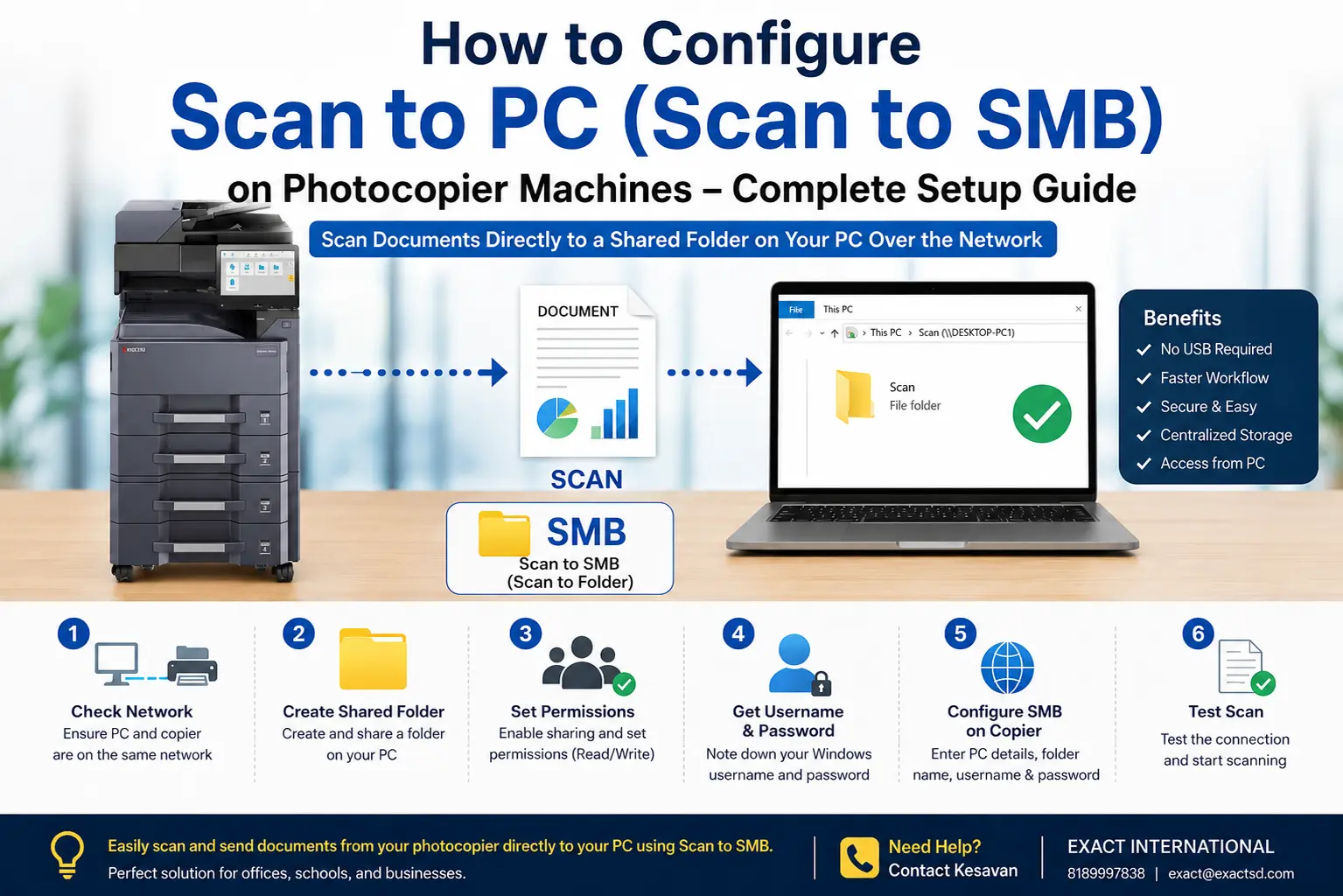
If your photocopier supports Scan to SMB (Scan to Folder), you can scan documents directly to a shared folder on your Windows computer without using a USB drive.
This guide explains the basic configuration process used on most multifunction photocopier brands, including Kyocera, Canon, Konica Minolta, Ricoh, HP, and Xerox. Although menu names may differ slightly, the overall setup process is very similar.
What is Scan to SMB configuration?
Scan to SMB (Server Message Block) allows a photocopier to send scanned documents directly to a shared folder on a Windows PC over the local network.
Instead of scanning to email or USB, the scanned file is automatically saved to a folder on your computer.
Before You Start
Keep the following information ready. It will take only a few minutes to collect, and it makes the setup much faster.
| What you need | Where to find it |
|---|---|
| Photocopier IP Address | Machine status page, control panel, or Printer Properties → Ports (see Step 1) |
| Computer IP Address | ipconfig in Command Prompt (see Step 1) |
| Computer Name (Host Name) | Right-click This PC → Properties, or the sign-in screen |
| Windows Username and Password | The account you use to sign in to the PC (see Step 4) |
| Shared Folder Name | The folder you create in Step 2 |
| Administrator access to the photocopier | Machine admin user name and password |
Step 1 – Verify Both Devices Are on the Same Network
Before configuring Scan to SMB, ensure that your photocopier and your computer are connected to the same local network (the same router or switch). A PC on Wi-Fi and a copier on LAN cable can still work, as long as they are on the same network.
Find Your Computer IP Address
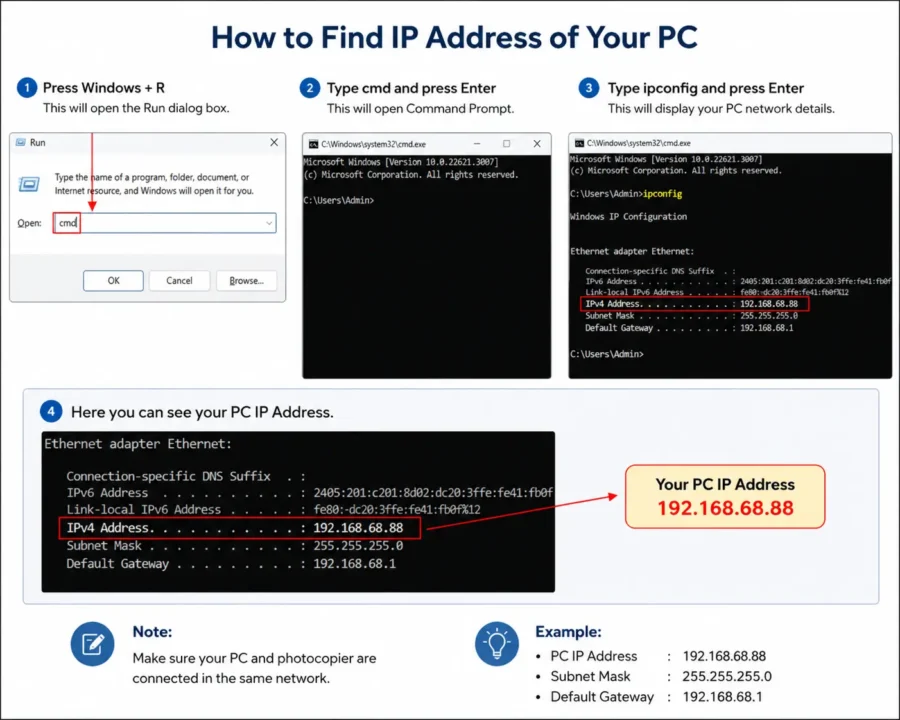
- Press Windows + R
- Type
cmd - Press Enter
- Type:
ipconfigand press Enter
You will see something like: Computer IP Address – 192.168.1.70 (for example). Look for the line named IPv4 Address.
Find the Photocopier IP Address
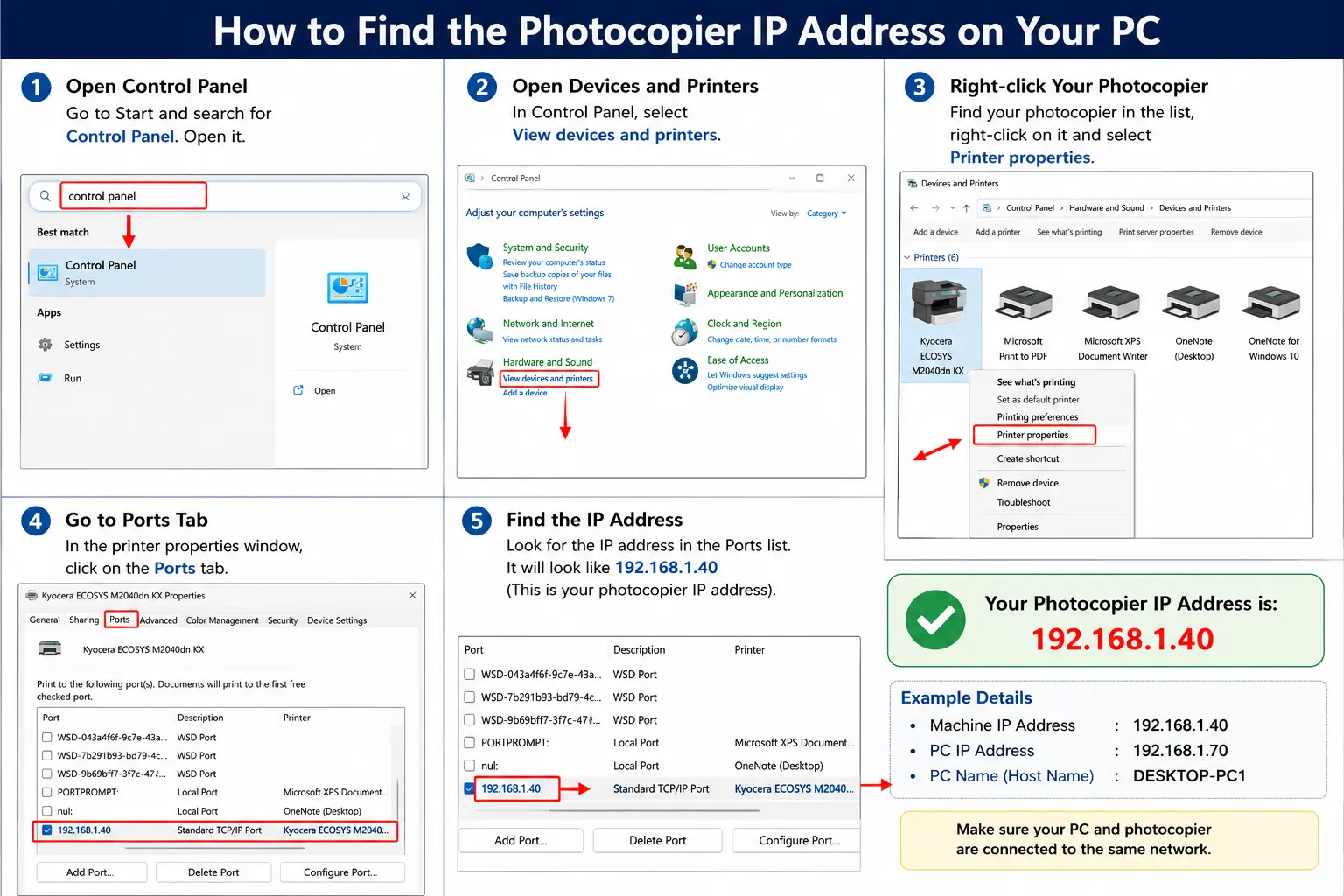
You can find the machine IP address in several ways:
- Method 1 – Print the Machine Status Page.
- Method 2 – Open the Network Information screen from the photocopier control panel.
- Method 3 (if printing already works) – On Windows: Control Panel → Devices and Printers → Right-click your printer → Printer Properties → Ports
Example: 192.168.1.40
Check That Both Devices Can Talk to Each Other
- Compare the two IP addresses. The first three parts should normally match, for example
192.168.1.70and192.168.1.40. - Open Command Prompt and type
ping 192.168.1.40(use your photocopier IP). - If you see replies, the network is fine. If you see “Request timed out”, check the network cable, Wi-Fi connection and IP settings.
Step 2 – Create a Shared Folder
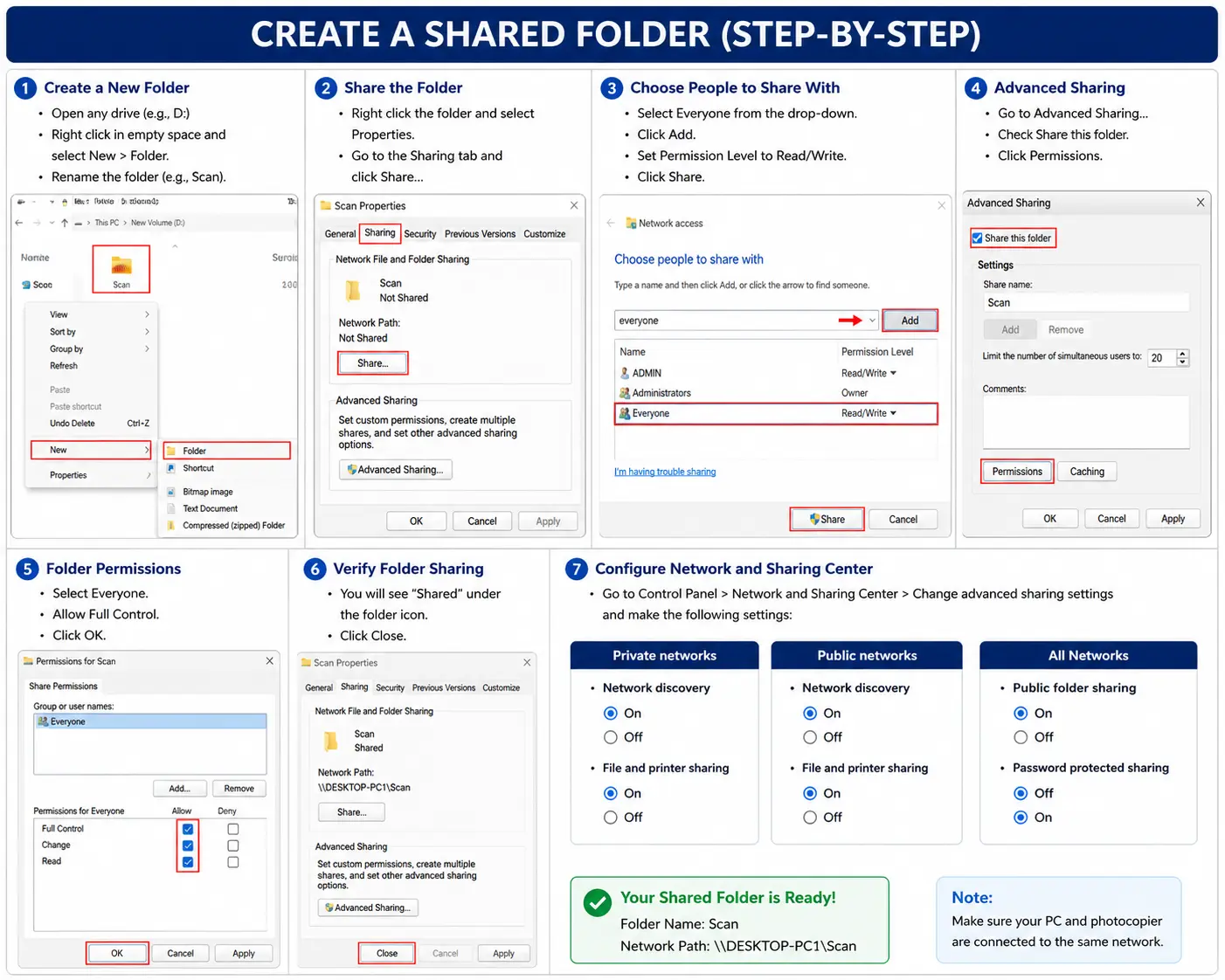
Create a folder where scanned files will be saved.
Example: D:\Scan
- Open any drive (for example D:)
- Right-click in an empty space and select New → Folder
- Rename it to
Scan
Scan), because some copiers do not accept them in the folder path.Share the Folder
- Right-click the folder.
- Select Properties.
- Open the Sharing tab.
- Click Share.
- Choose Everyone from the drop-down and click Add.
- Set the permission to Read/Write.
- Click Share.
Configure Advanced Sharing
Still inside the folder properties:
- Open Advanced Sharing
- Tick Share this folder
- Click Permissions
- Allow Full Control
- Click OK
Verify the Shared Folder
After sharing, the folder shows a Shared status in its properties, with a network path like \\DESKTOP-PC1\Scan. To test it from the same PC, press Windows + R, type \\192.168.1.70\Scan (use your PC IP) and press Enter. If the folder opens, sharing is working.
Step 3 – Configure Windows Sharing
Open: Control Panel → Network and Sharing Center → Advanced Sharing Settings and verify the following settings.
Private Network
- Network Discovery – ON
- File and Printer Sharing – ON
Public Network
- Network Discovery – ON
- File and Printer Sharing – ON
All Networks
- Public Folder Sharing – ON
- Password Protected Sharing – OFF (only if it aligns with your organization’s security policy; otherwise leave it on and configure the copier with valid credentials)
| Network type | Network Discovery | File and Printer Sharing | Public Folder Sharing | Password Protected Sharing |
|---|---|---|---|---|
| Private | ON | ON | – | – |
| Public | ON | ON | – | – |
| All Networks | – | – | ON | OFF (see note above) |
Your shared folder is now ready.
Step 4 – Verify Windows Username and Password
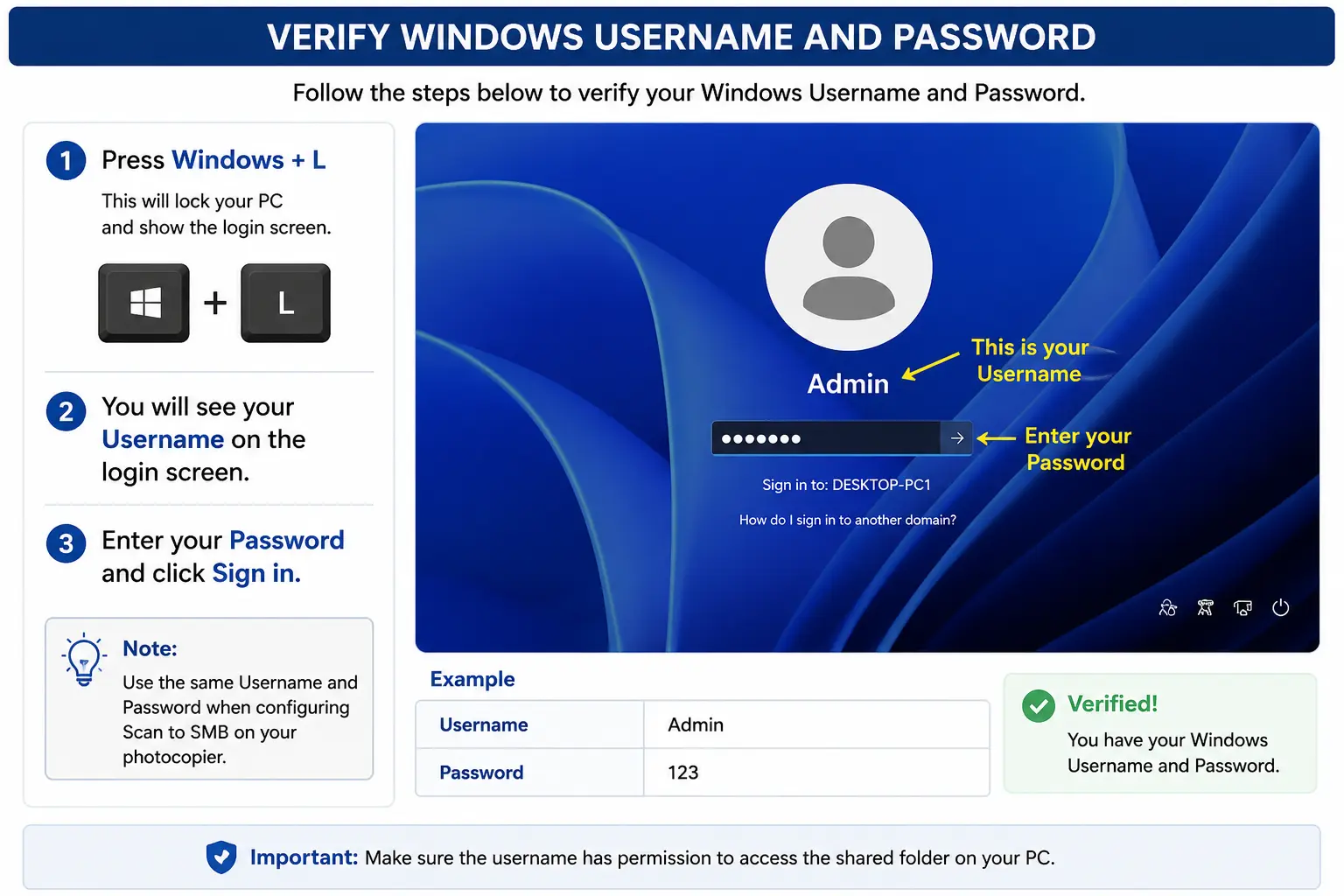
The photocopier needs valid Windows login credentials.
To verify your username, press Windows + L. Your Windows login screen will display your username.
| Username | Admin |
|---|---|
| Password | ******** |
Keep these details ready. Make sure this user has permission to access the shared folder on your PC.
Information Required Before SMB Configuration
Before configuring the machine, make sure you have:
| Machine IP | 192.168.1.40 |
|---|---|
| Computer IP (or Computer Name) | 192.168.1.70 (or DESKTOP-PC1) |
| Shared Folder | Scan |
| Username | Admin |
| Password | ******** |
Step 5 – Configure Scan to SMB
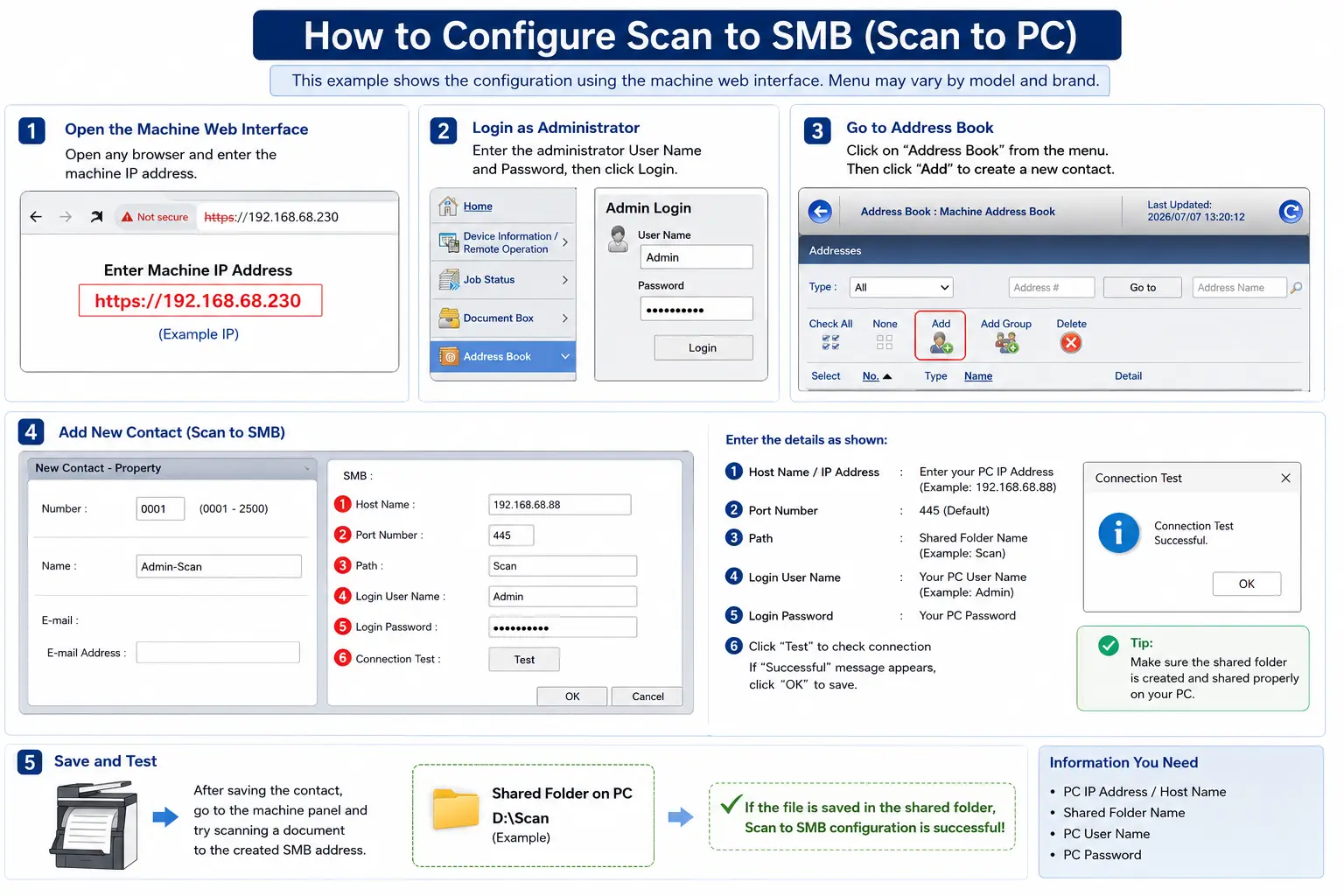
- Open any web browser.
- Enter the photocopier IP address. Example:
http://192.168.1.40 - Log in as Administrator.
- Open: Address Book → Add New Contact
- Enter:
- Display Name
- Computer IP Address
- Shared Folder Name
- Windows Username
- Windows Password
- Save the settings.
On many machines the port number is 445 (default), so you normally do not need to change it.
If your machine has a Connection Test option, run the test before scanning. If no test option is available, perform a trial scan. If the scanned file appears in your shared folder, the setup is successful.
Common Scan to SMB Problems and Fixes
| Problem | What to check |
|---|---|
| Login failed / Authentication error | Re-enter the Windows username and password. Check for typing mistakes and the correct Caps Lock state. |
| Access denied / folder permissions | Confirm the folder is shared with Everyone (Read/Write) and Full Control is allowed in Advanced Sharing. |
| Network unreachable | Make sure the PC and photocopier are on the same network, and recheck both IP addresses. |
| Windows firewall blocking SMB | Make sure File and Printer Sharing is allowed through Windows Firewall. |
| SMB version compatibility | Check the SMB version options on the copier and match them with your Windows version. |
| Hostname not working | Use the computer IP address instead of the computer name. |
These problems are usually related to Windows settings or network configuration rather than the photocopier itself.
Frequently Asked Questions
Does Scan to SMB work on all photocopier brands?
Most multifunction photocopiers, including Kyocera, Canon, Konica Minolta, Ricoh, HP and Xerox, support Scan to SMB. Menu names may differ slightly by brand and model.
Should I use the computer name or IP address?
Use the IP address for the first setup because it avoids hostname resolution problems. You can switch to the computer name later if you prefer.
Why does the connection test fail?
Most failures come from a wrong username or password, folder permissions, the firewall, or the PC and copier being on different networks. Check the table above.
Can I scan to a folder on another drive?
Yes. The shared folder can be on any drive, such as D:\Scan. The copier only needs the shared folder name.
Need Professional Help?
Having trouble configuring Scan to SMB? Exact International provides:
- Scan to SMB configuration
- Network setup
- Driver installation
- Photocopier installation
- Remote support
- On-site support across Tamil Nadu
Contact Kesavan
8189997838
[email protected]
